> For the complete documentation index, see [llms.txt](https://docs.roivenue.com/roivenue-resources/llms.txt). Markdown versions of documentation pages are available by appending `.md` to page URLs; this page is available as [Markdown](https://docs.roivenue.com/roivenue-resources/roivenue-training/roivenue-app/attribution/path-analysis.md).
# Path Analysis
See the customer journeys behind your conversions: how many touchpoints they have, how long they take, which channels appear together and which paths bring the most revenue.
Attribution tells you how much credit each channel gets. Path Analysis shows the customer journeys behind that credit. You see how long and complex your conversion paths are, how impressions and path stitching change them, and which combinations of channels lead to conversions.
Use Path Analysis when you want to:
* check how many touchpoints and days your customers need before they convert,
* see how much credit AI Data Driven moves away from the last touchpoint,
* find channels that often appear in the same conversion paths,
* look at the most common paths and the revenue they bring,
* explain why short paths give most of the credit to the last touchpoint.
The page has eight parts:
1. **Header:** Share, Save, currency selector, attribution model, and date range.
2. **KPI cards:** average touchpoints and days to convert, and LT redistribution.
3. **Touchpoint Type:** the share of each touchpoint type in your conversion paths.
4. **Path Setup:** switches for path stitching and impressions.
5. **Overlap chart:** how often selected channels appear together in conversion paths.
6. **Days to Convert** and **Touchpoints to Convert:** the distribution of path lengths.
7. **Conversion Path:** a table of paths with their conversions, revenue and other metrics.
8. **Filter Panel:** filters for the whole page. When you close it, open it again with the filter icon in the header.
To open the page, go to **Attribution → Path Analysis** in the left navigation. The date range and the **Filter Panel** apply to the whole page. See [Date Picker](https://docs.roivenue.com/roivenue-resources/roivenue-training/roivenue-app/date-picker) and [Filter Panel](https://docs.roivenue.com/roivenue-resources/roivenue-training/roivenue-app/filter-panel).
***
#### How to choose the model behind the paths
The paths come from the attribution model you select in the header, for example, **AI Data Driven** or **Last Touch**. Each model has its own path settings, so the same period can show different paths for different models.
With **Last Touch**, every conversion path has one touchpoint. The KPI cards show 1 touchpoint and 0% LT redistribution, and the **Path Setup** switches are greyed out. Choose **AI Data Driven** to see the full journeys.
***
#### How to read the KPI cards
| KPI card | What it shows |
| -------------------------- | ----------------------------------------------------------------------------------------------------------------------------------------------------- |
| **Touchpoints to convert** | The average number of touchpoints in conversion paths. |
| **Days to convert** | The average length of a conversion path in days. |
| **LT redistribution** | The share of credit the model gives to touchpoints other than the last one. A high value means earlier touchpoints matter more than Last Touch shows. |
Averages can hide a lot. Check the [Days to Convert and Touchpoints to Convert](https://docs.roivenue.com/roivenue-resources/roivenue-training/roivenue-app/attribution/path-analysis#how-to-read-days-to-convert-and-touchpoints-to-convert) charts to see how the paths are distributed.
***
#### How to use Path Setup
**Path Setup** shows how path stitching and impressions change your conversion paths.
1. **Path Setup switches:**
* **Path Stitching** adds sessions that Roivenue links to the same user with probabilistic stitching, so conversion paths get longer. It works only with [Roivenue Measurement](https://docs.roivenue.com/roivenue-resources/implementation/web-data/roivenue-measurement). You turn it on or off for each attribution model in **Account Configuration → Attribution Models**. See [Path Stitching Settings](https://docs.roivenue.com/roivenue-resources/roivenue-training/roivenue-app/account-configuration/attribution-models#path-stitching-settings).
* **Pixel Impressions** adds impressions tracked by the Roivenue impression pixel. See [Pixel-Tracked Impressions](https://docs.roivenue.com/roivenue-resources/roivenue-training/core-concepts/click-based-vs.-impression-based-touchpoints#pixel-tracked-impressions) and [Impression Tracking](https://docs.roivenue.com/roivenue-resources/implementation/web-data/roivenue-measurement/impression-tracking).
* **Synthetic Impressions** adds impressions that Roivenue creates from platform data. You turn them on or off for each attribution model in **Account Configuration → Attribution Models**. See [Synthetic Impressions](https://docs.roivenue.com/roivenue-resources/roivenue-training/core-concepts/click-based-vs.-impression-based-touchpoints#synthetic-impressions) and [Synthetic Impression Settings](https://docs.roivenue.com/roivenue-resources/roivenue-training/roivenue-app/account-configuration/attribution-models#synthetic-impression-settings).
2. **Touchpoint Type** adds the new touchpoint types to the chart, for example, **Synthetic Impression**.
3. **KPI cards** recalculate with the selected data.
Example from the screenshot: with **Synthetic Impressions** on, the average path grows from 4.2 to 4.5 touchpoints, and LT redistribution grows from 22.5% to 31.3%.
{% hint style="info" %}
**Note:** The switches change only the KPI cards and the Touchpoint Type chart. They don't change the other charts or the Conversion Path table, and they don't change attribution.
{% endhint %}
***
#### How to read the Touchpoint Type chart
The **Touchpoint Type** pie chart shows the share of each touchpoint type in your conversion paths. The table below explains each type you can see in the chart:
| Touchpoint type | What it is |
| ------------------------ | -------------------------------------------------------------------------------------------------- |
| **Visit** | A website session. |
| **Synthetic Visit** | The first touchpoint of a journey reconstructed from GA4 API data. See FAQ 2. |
| **Impression** | An ad impression tracked by the Roivenue impression pixel. Shown when **Pixel Impressions** is on. |
| **Synthetic Impression** | An impression created from platform data. Shown when **Synthetic Impressions** is on. |
The download icon in the top right corner of the chart exports its data.
***
#### How to find channels that work together
The overlap chart shows how often selected values of a dimension appear together in conversion paths. Each circle shows the number of conversion paths that contain the value. The overlapping area shows paths that contain all of them.
1. In **Dimensions**, choose what the circles represent, for example **Platform Name** or **Campaign (auto)**. The chart title changes with it, for example, **Platform Name Overlap**.
2. In **Dimension Values**, add up to three values with **Add Item**, or remove one with the bin icon. When you reach three, **Add Item** disappears.
3. Hover over the overlapping area to see how many paths contain all values, and what share of each circle that is.
The dimension you choose here affects only the overlap chart.
{% hint style="info" %}
**Tip:** A big overlap between two channels means they often reach the same converting users. Before you cut the budget of one of them, check its role in the paths in the Conversion Path table.
{% endhint %}
***
#### How to read Days to Convert and Touchpoints to Convert
The two bar charts show the share of conversion paths by length:
* **Days to Convert** groups paths by the number of days in the path: 1, 2, 3–7, 8–15, 16–30 and 31+ days.
* **Touchpoints to Convert** groups paths by the number of touchpoints: 1, 2, 3, 4, 5–10 and 10+.
The download icon in the top right corner of each chart exports its data.
***
#### How to read the Conversion Path table
Each row is one sequence of touchpoints that led to a conversion. Steps follow each other from left to right.
1. **Table settings:**
* **Dimension** defines what each step shows, for example, **Platform Name** or **Campaign (auto)**.
* **Metric 1–4:** choose up to four columns, for example, **Conversions**, **Length** (the number of touchpoints in the path), **Net Revenue**, **Gross Profit,** or **Visits**. Remove a metric with the cross icon.
2. **Customer Journey** shows the path. Each step has an icon: the eye marks an impression, the cursor marks a click. Impressions also have a dashed border. Repeated steps in a row are grouped, for example, **Direct (7x)**. In the example, users saw a Facebook Business ad and then came back directly.
3. **Total** and **Average** rows at the bottom summarize all paths in the selected period.
Click a path to open **Journey Detail** with all its steps.
Each column header has a filter icon. Use it to filter the table by the values in that column.
To see more paths, change the number of rows with **Rows per page** and move between pages at the bottom of the table.
***
#### How the Filter Panel works in Path Analysis
The Filter Panel filters the whole page, but it decides on whole paths, not single touchpoints. A path stays on the page or disappears as a whole, with all its touchpoints.
**Keep only one value.** Click **Only** next to a value, for example, Facebook Business in **Platform Name**. The page shows only paths that contain Facebook Business at least once. The paths still show all their other touchpoints, for example Facebook Business → Direct or Google Ads → Facebook Business → Direct. Facebook Business is always one of the steps.
**Uncheck a value**, for example, Facebook Business. The page removes only paths that consist of Facebook Business alone. Paths where Facebook Business appears together with other touchpoints, for example, Facebook Business → Direct, stay on the page.
**Reset All** at the bottom of the panel removes all filters. See [Filter Panel](https://docs.roivenue.com/roivenue-resources/roivenue-training/roivenue-app/filter-panel).
***
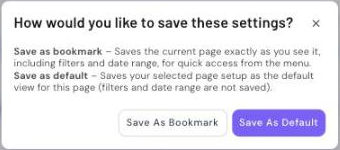
#### How to save and share the view
Click **Save** in the header at the top of the page, next to **Share**.
Then choose how to save the view.
* **Save As Bookmark** keeps the page exactly as you see it, including filters and date range. You open it from **Bookmarks** in the left navigation. See [Bookmarks](https://docs.roivenue.com/roivenue-resources/roivenue-training/roivenue-app/bookmarks).
* **Save As Default** makes the current page setup the default view of the page. Filters and date range are not saved.
* **Share** copies a link to the current view to your clipboard.
Every KPI card, chart and the Conversion Path table has an **Add to Dashboard** icon. See [Dashboard](https://docs.roivenue.com/roivenue-resources/roivenue-training/roivenue-app/dashboard).
***
**FAQ**
1. Why are my conversion paths so short, often one day and one or two touchpoints?
Check the attribution model in the header first. With **Last Touch**, every path has one touchpoint. With **AI Data Driven**, the most common reason is web data from the GA4 API connector. The GA4 API provides only the first and the last touchpoint of a journey, so paths look shorter than they are. Roivenue uses the GA4 API mainly to download historical data. For long-term analysis, connect GA4 through BigQuery or use Roivenue Measurement.
2. What is a Synthetic Visit?
A Synthetic Visit appears when web data comes from the GA4 API. GA4 reports the first touchpoint of a journey in the same data row as the last one. To keep the full journey, Roivenue adds the first touchpoint to the path as a Synthetic Visit, because it lacks full session-level information. Without it, the last touchpoint would get almost all the credit, as in Last Touch.
3. Why doesn't Path Stitching change my paths?
Path Stitching needs Roivenue Measurement as the source of web data. The Roivenue Measurement pixel collects the parameters that link sessions of the same user. GA4 does not provide them. Without Roivenue Measurement, some paths stay unstitched, and more credit can go to Direct.
If you use Roivenue Measurement and the paths still don't change, check the attribution model in **Account Configuration → Attribution Models**. Path stitching can be turned off for the model, or **Required Probability of Match** can be set so high that Roivenue adds only a few touchpoints. A higher value adds fewer touchpoints, but with higher confidence that they belong to the path. See [Path Stitching Settings](https://docs.roivenue.com/roivenue-resources/roivenue-training/roivenue-app/account-configuration/attribution-models#path-stitching-settings).
4. Why don't Pixel Impressions or Synthetic Impressions change anything?
**Pixel Impressions** need an active Roivenue impression tracking pixel in your advertising platforms. If the pixel is not implemented or has not collected data, there are no impressions to show. See [Impression Tracking](https://docs.roivenue.com/roivenue-resources/implementation/web-data/roivenue-measurement/impression-tracking) and [Pixel-Tracked Impressions](https://docs.roivenue.com/roivenue-resources/roivenue-training/core-concepts/click-based-vs.-impression-based-touchpoints#pixel-tracked-impressions).
**Synthetic Impressions** need web data and platform data that Roivenue can match. Common reasons they are not available: the website does not send conversion values to the platforms, web data and platform data use different time zones, or the platform does not report conversions. Synthetic impressions must also be turned on in the attribution model. See [Synthetic Impressions](https://docs.roivenue.com/roivenue-resources/roivenue-training/core-concepts/click-based-vs.-impression-based-touchpoints#synthetic-impressions) and [Synthetic Impression Settings](https://docs.roivenue.com/roivenue-resources/roivenue-training/roivenue-app/account-configuration/attribution-models#synthetic-impression-settings).
With **Last Touch**, the switches are greyed out, because every path has one touchpoint.
5. Why do the numbers in the overlap chart differ from Model Comparison?
The two pages count different things. The overlap chart counts conversion paths that contain a touchpoint with the selected value. Model Comparison shows conversions attributed to that value. One path can contain several channels, and each channel gets only part of the conversion.
6. Why can't I find a dimension, for example Conversion Type or Site, in Path Analysis?
Some dimensions are hidden on certain pages. Go to **Data → Dimensions**, click the gear icon next to the dimension, and check on which pages it is hidden. Uncheck **Path Analysis** and save. See [Dimensions](https://docs.roivenue.com/roivenue-resources/roivenue-training/roivenue-app/data/custom-dimensions).
7. What does "Referral" or "Other" mean in a path?
It is the default value of the **Platform Name** dimension. When no rule for the dimension matches a touchpoint, Roivenue labels it with the default value. Many accounts rename it from Referral to Other. If the default value is empty, you see Undefined. Add a rule in **Data → Dimensions** to move the touchpoints to the right platform.
8. Why is a platform missing in Path Analysis when I see it in other reports?
Path Analysis data may not be processed for older periods, for example, for a platform you stopped using a long time ago. Contact Roivenue support and ask them to process Path Analysis data for the period you need.
9. Why can the number of touchpoints be lower than the number of visits?
In very long journeys, the model merges identical touchpoints that follow each other into one touchpoint to speed up processing. The visits stay in the data, so a journey can have fewer touchpoints than visits.
10. Why does the same touchpoint appear in several conversion paths?
When a user converts more than once, the touchpoints before the first conversion can also be part of the path of the next conversion. This happens when **Start New Path After Conversion** is off in the model settings in **Account Configuration → Attribution Models**. See [Attribution Path Settings](https://docs.roivenue.com/roivenue-resources/roivenue-training/roivenue-app/account-configuration/attribution-models#attribution-path-settings).
11. Can I export individual paths or see which orders a path led to?
The Conversion Path table shows grouped paths. To see the journey of a single order, use [Transactions History](https://docs.roivenue.com/roivenue-resources/roivenue-training/roivenue-app/attribution/transactions-history). For a bulk export of individual journeys, Roivenue offers the **Raw Path Export**. It contains raw touchpoints and conversions and is an add-on service. Ask your Customer Success Manager through the [Roivenue Help Center](https://docs.roivenue.com/roivenue-resources/roivenue-help-center).
12. Do the Path Setup switches change attribution?
No. They only show how path stitching and impressions change the paths. Attribution follows the settings of the model in **Account Configuration → Attribution Models**.